
What is Amazon WorkSpaces Application Manager?
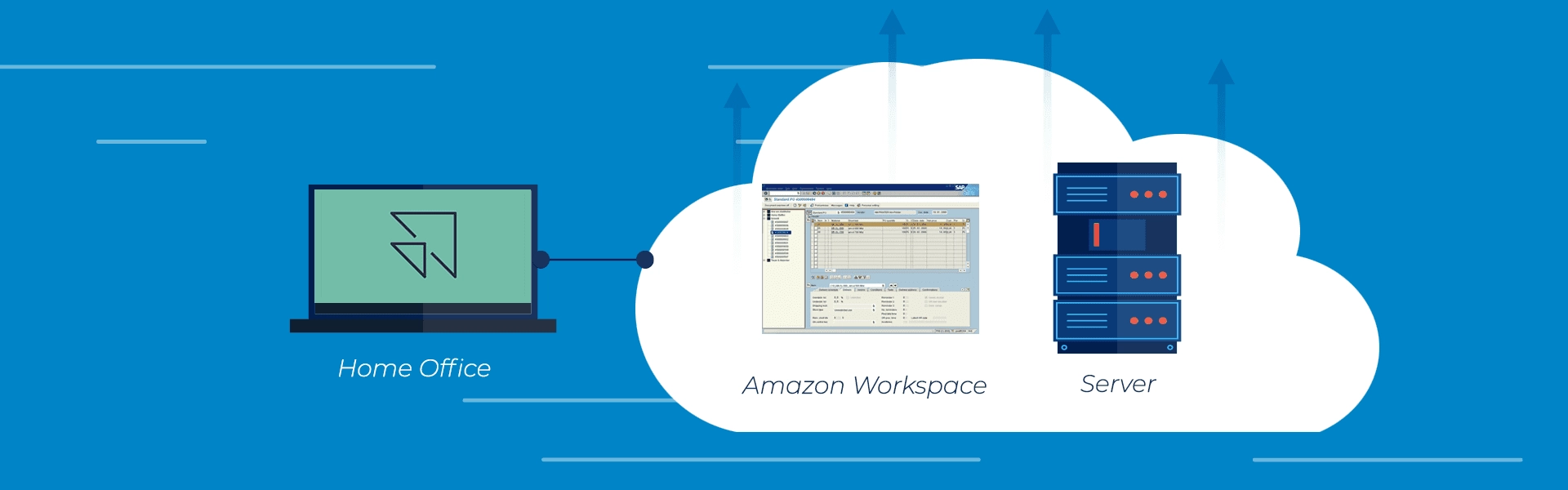
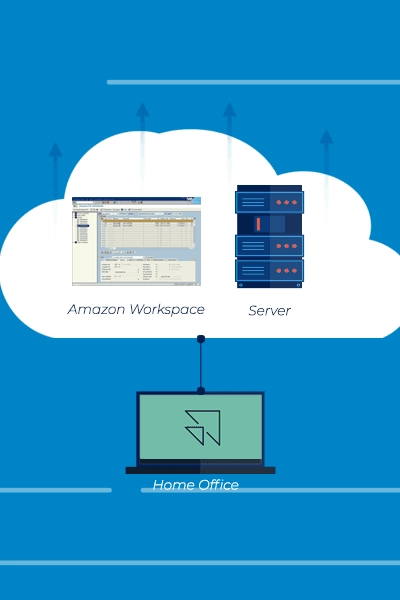
Amazon WorkSpaces Application Manager (WAM) makes it easier to manage and deploy applications for Amazon WorkSpaces by grouping the desired applications into virtualized application containers, which can run as if they were installed natively.
What is AWS Marketplace for Desktop Apps?
AWS Marketplace for Desktop Apps is the catalog with all the applications offered by AWS that can be assigned to the users and groups of your domain. With it we can, easily and quickly, choose and subscribe to the applications we want to make available.
Required knowledge
To manage applications for WorkSpaces, it is recommended to know how to configure a WorkSpace.
Prerequisites
To configure Amazon WorkSpaces Application Manager, you will need:
To have a Directory configured for WorkSpaces; At least one user created in the Directory;
Step 1: Selecting an Application in the AWS Marketplace
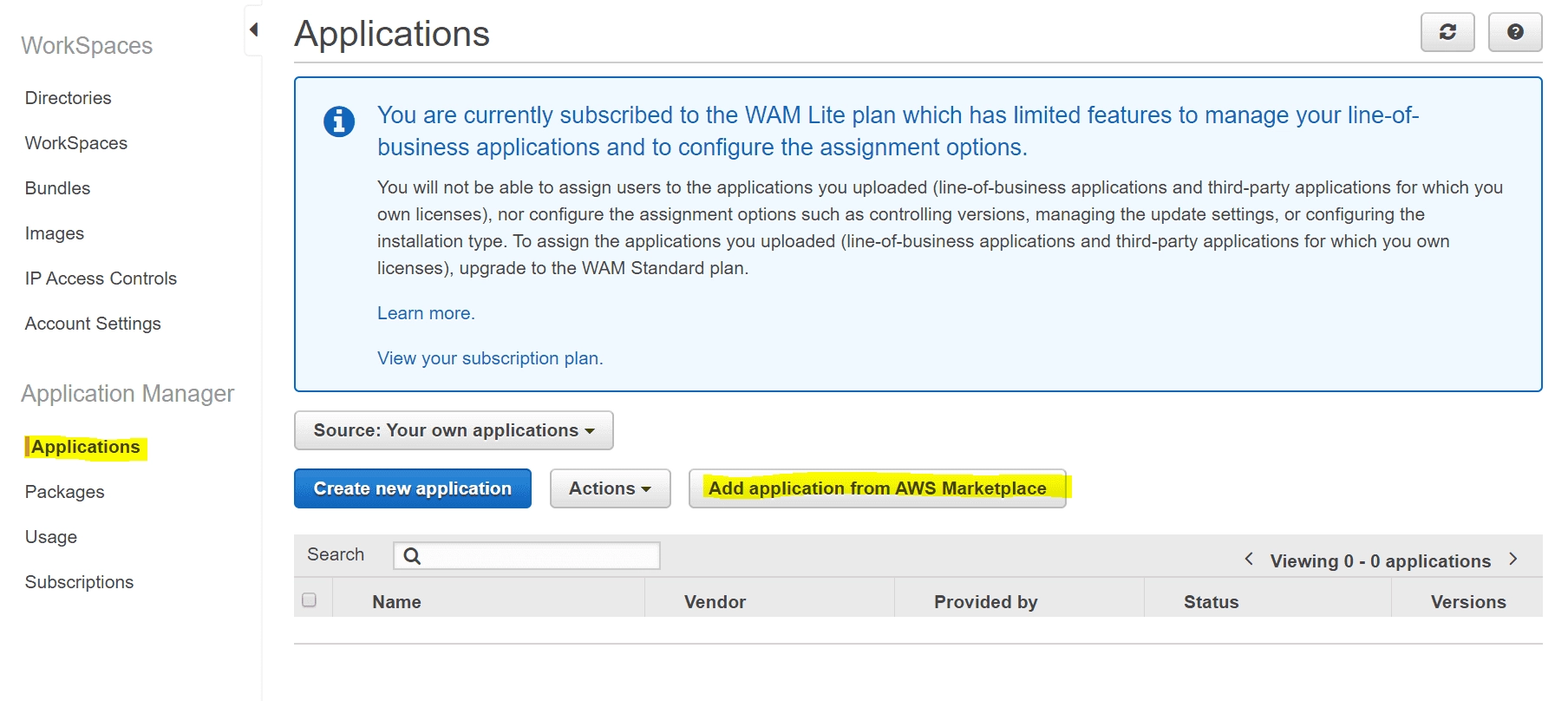
In the WorkSpaces tab of the AWS Management Console, go to “Applications” and select “Add application from AWS Marketplace”.
You will be redirected to a screen with several applications that are available to be selected; for this article we will choose Notepad++.
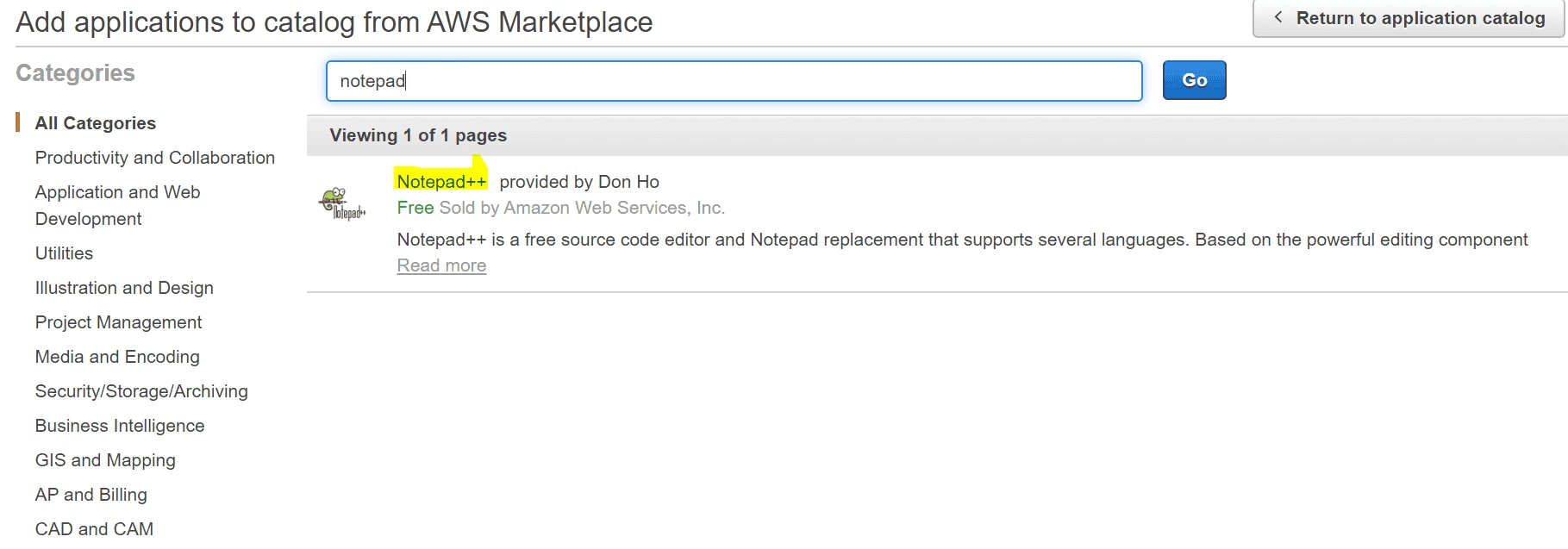
Select the application you want to subscribe to. Note that some applications are free and others are paid. At the end of the application page, select “Accept terms and subscribe”.
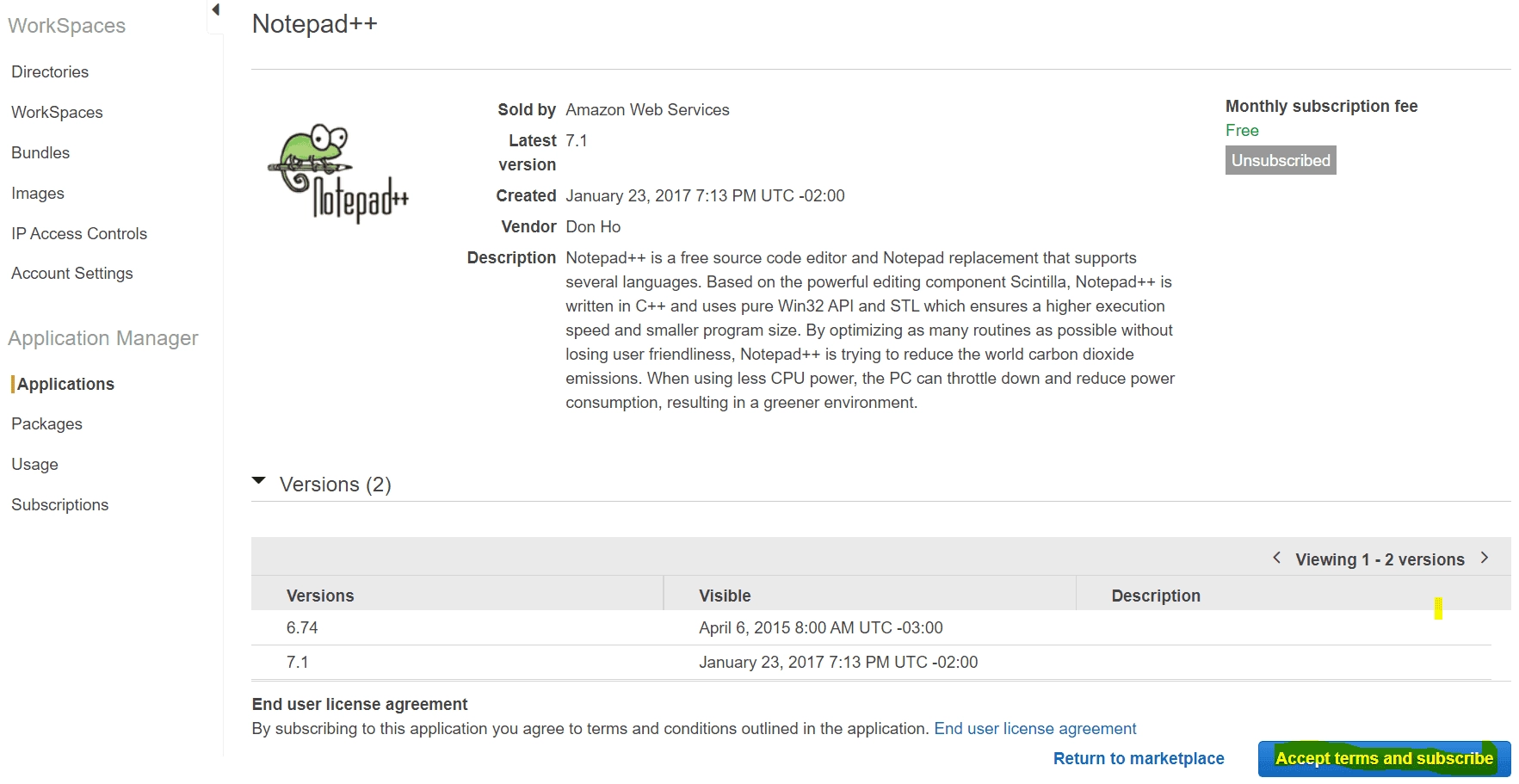
Then return to your application catalog.
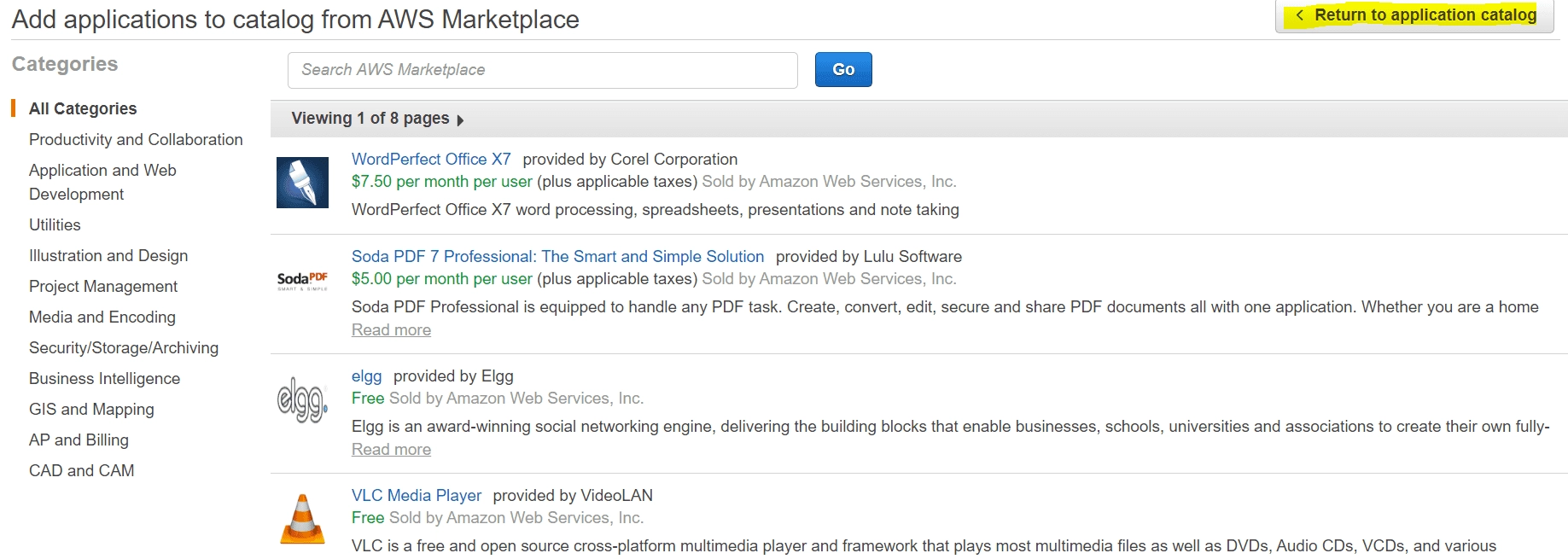
Step 2: Associating an application with the user
In the “Applications” tab, switch the option from “Source: Your own applications” to “AWS Marketplace”.
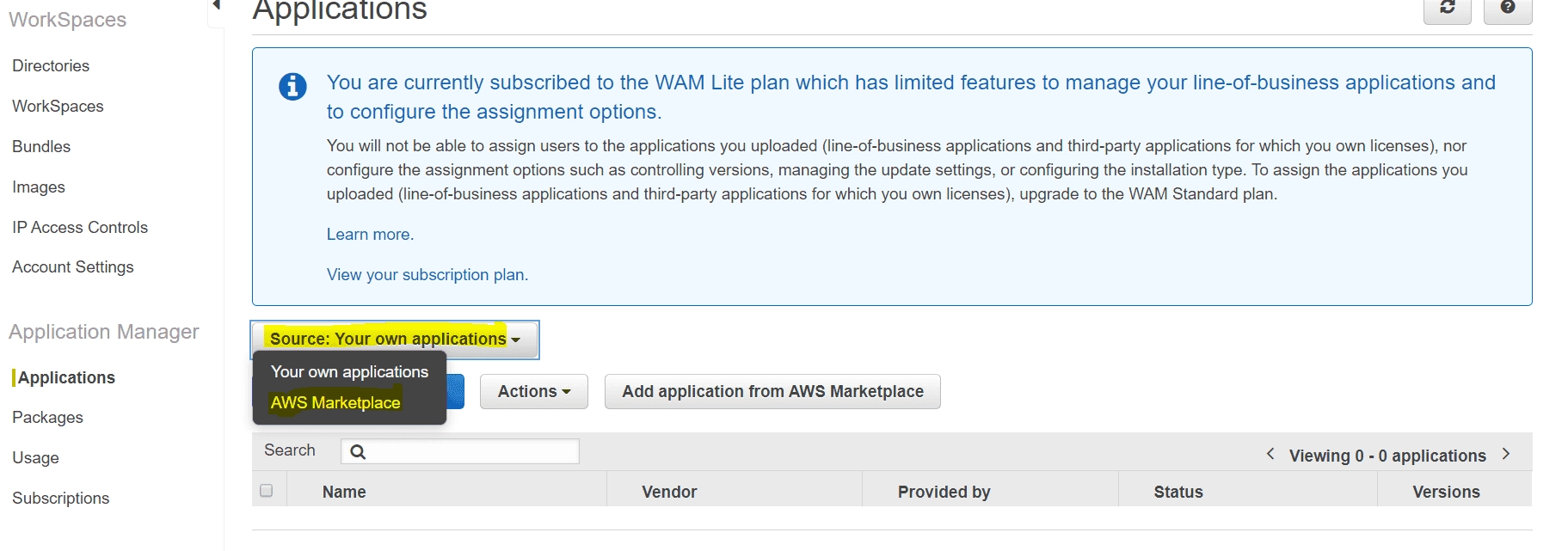
Select the desired application(s) and then click “Actions” and then “Assign application(s) to users”.

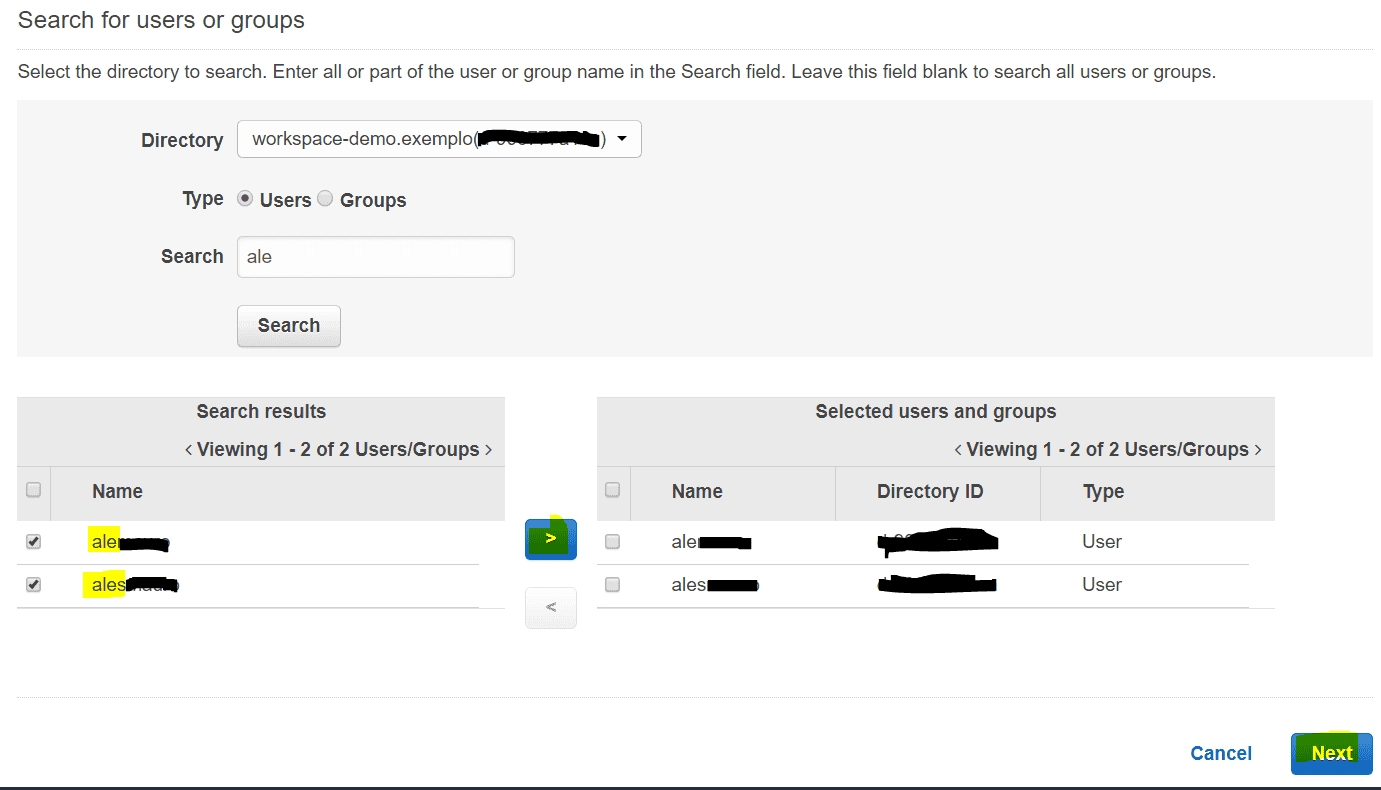
On the user selection screen, choose the domain where the user(s)/group(s) to be associated with the application are located, and then search for the desired object.
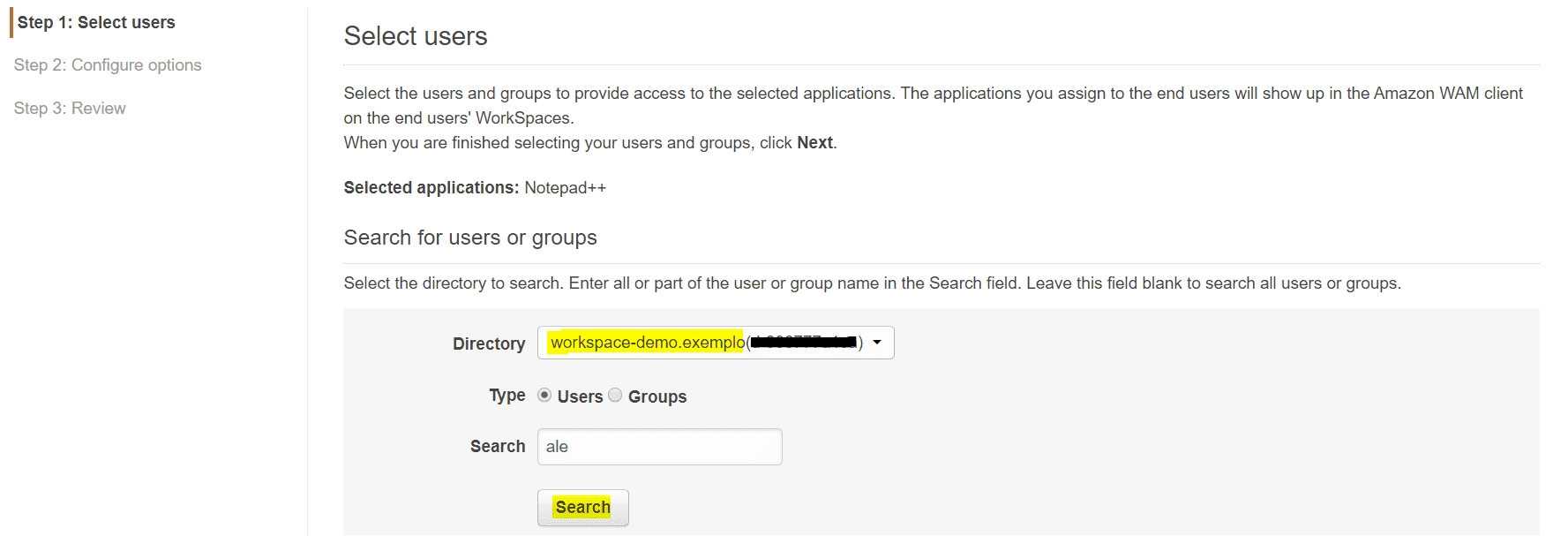
Select the user(s)/group(s) and advance to the next screen.
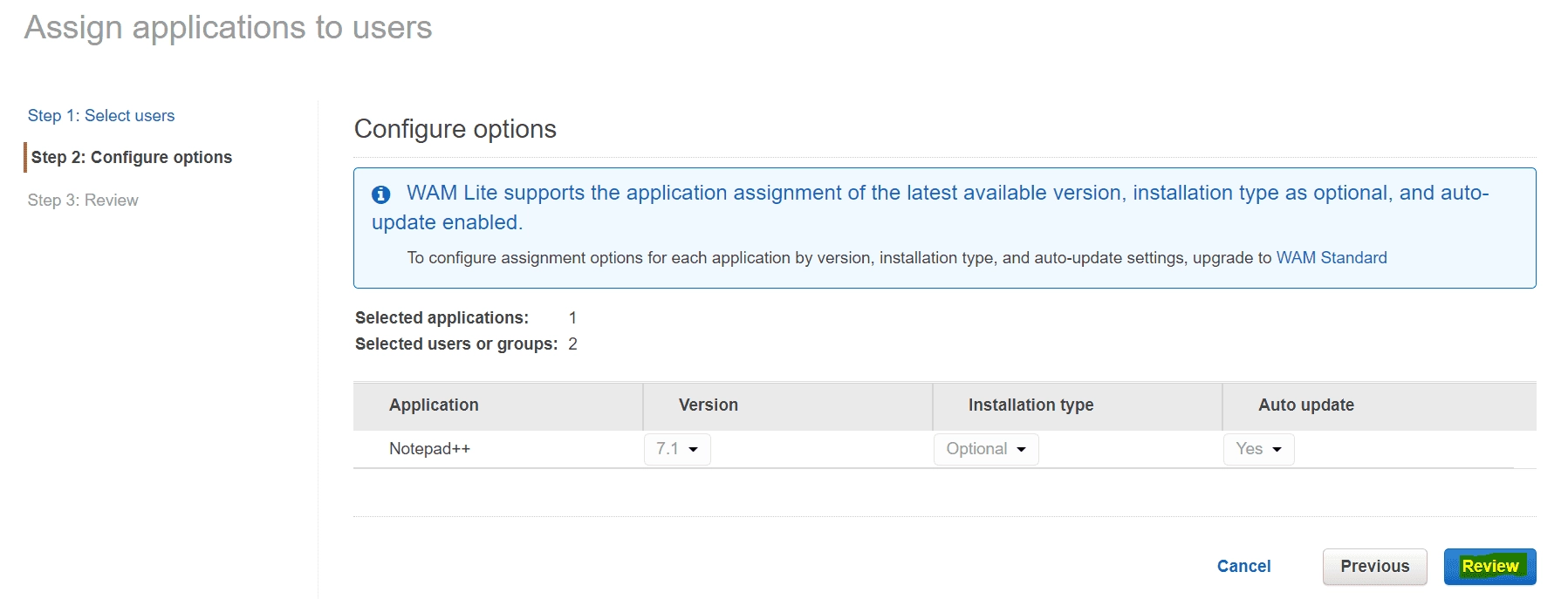
On this screen you can choose the version of the application(s), the installation type, and enable or disable automatic updates.
NOTE: If you are using WAM Lite, you will not be able to change these settings; the applications will always be on the latest available version.
Review the information and select “Confirm and assign”.
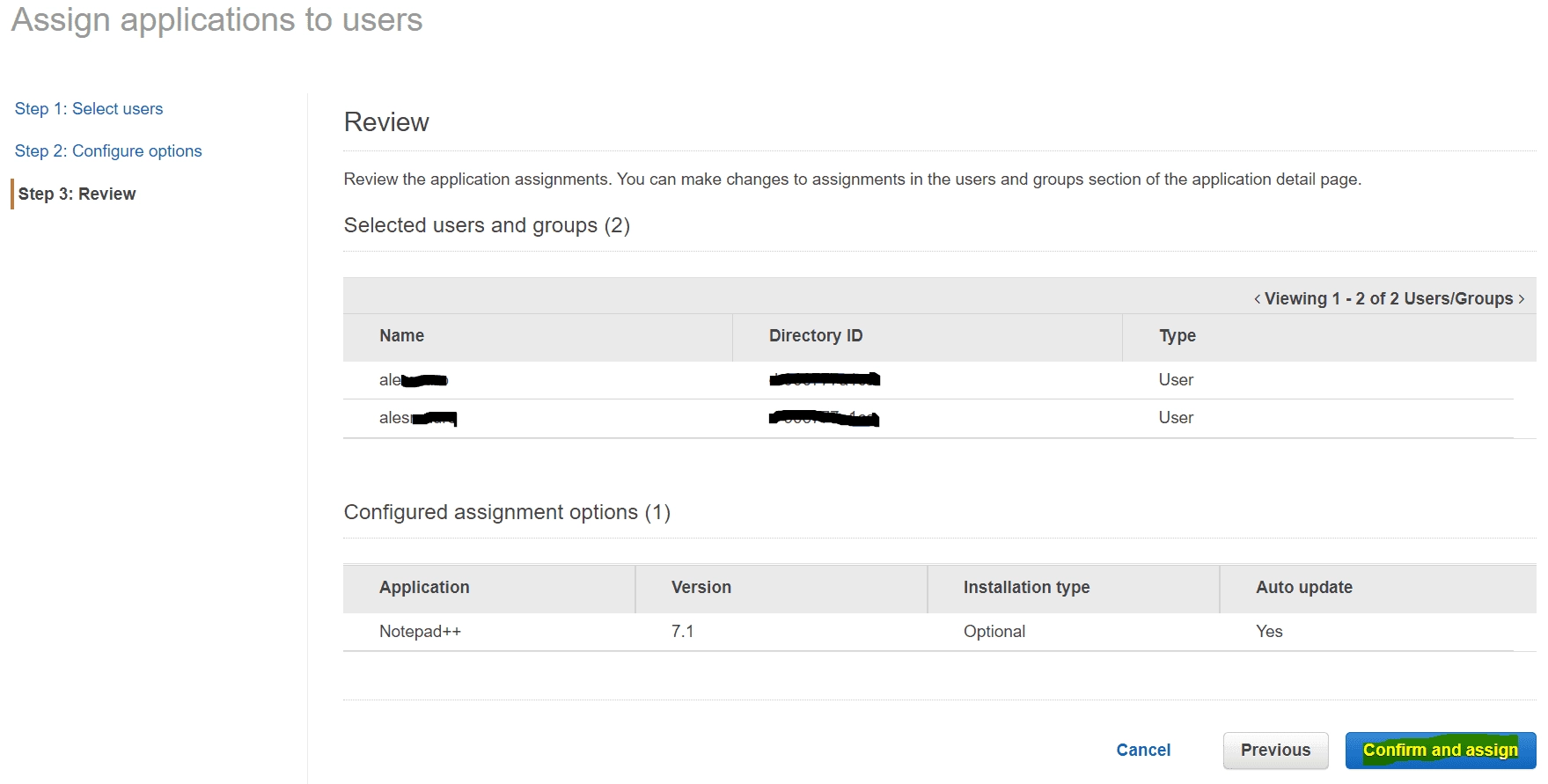
Whenever you need to review the settings, just go to the application page.
Step 3: Installing the application on the WorkSpaces
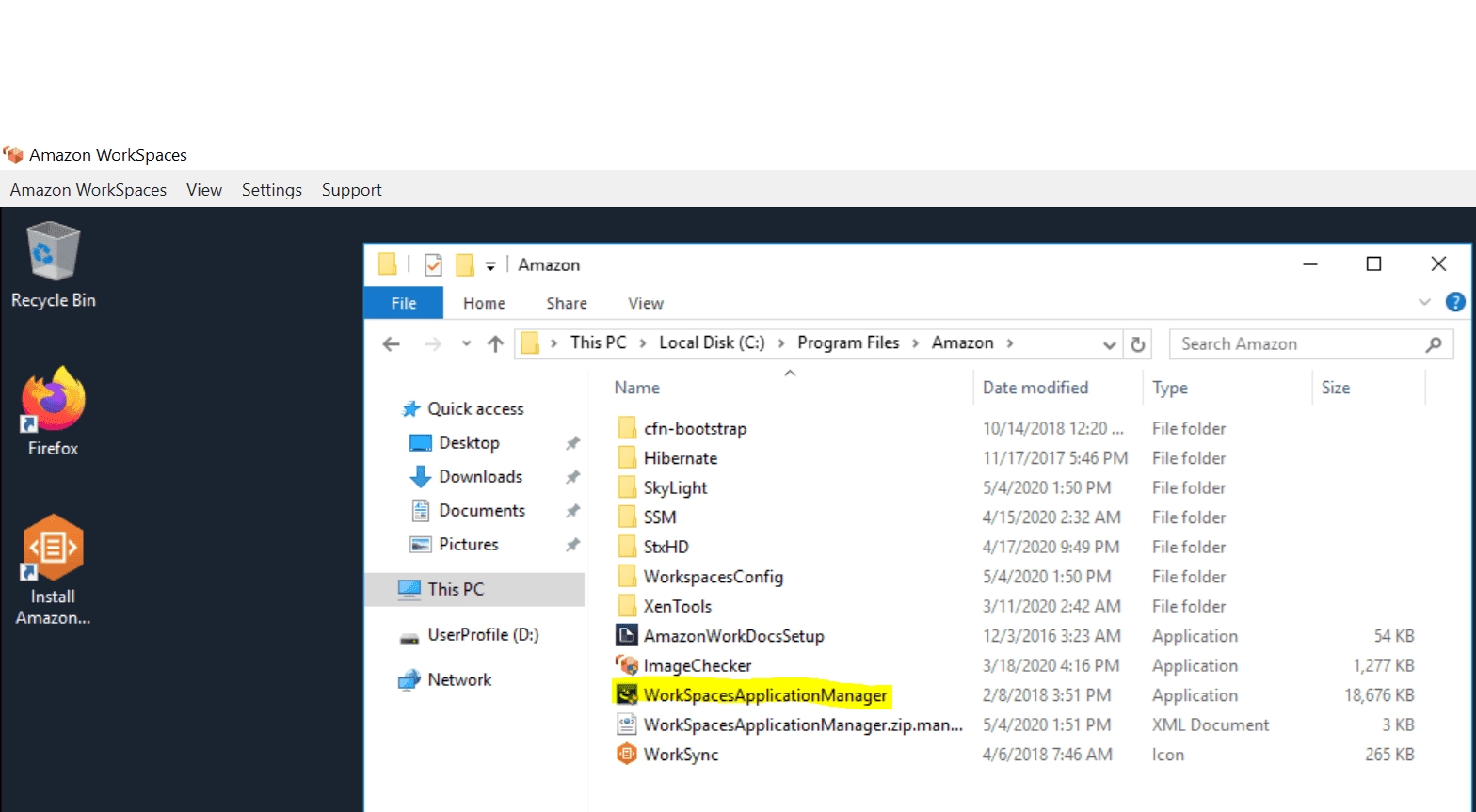
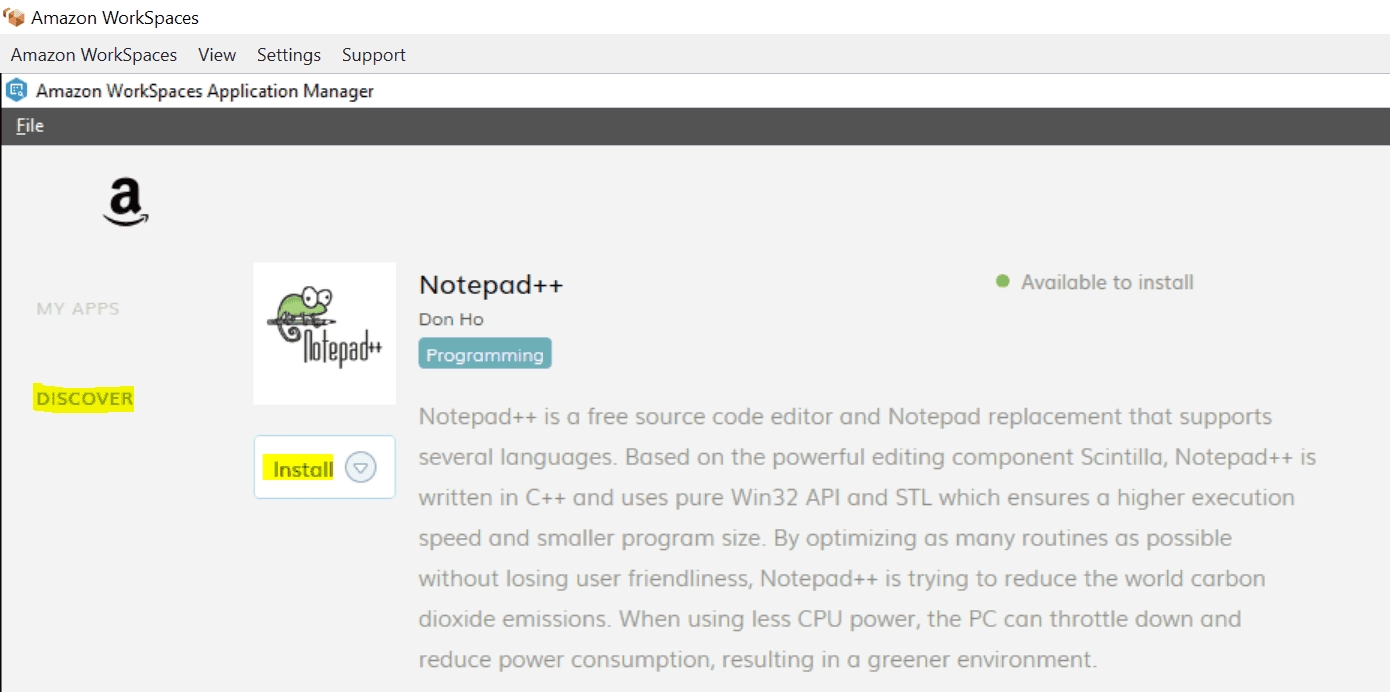
Within the WorkSpace, start the “WorkSpaces Application Manager” application. If it is not installed, it is located in C:\Program Files\Amazon.
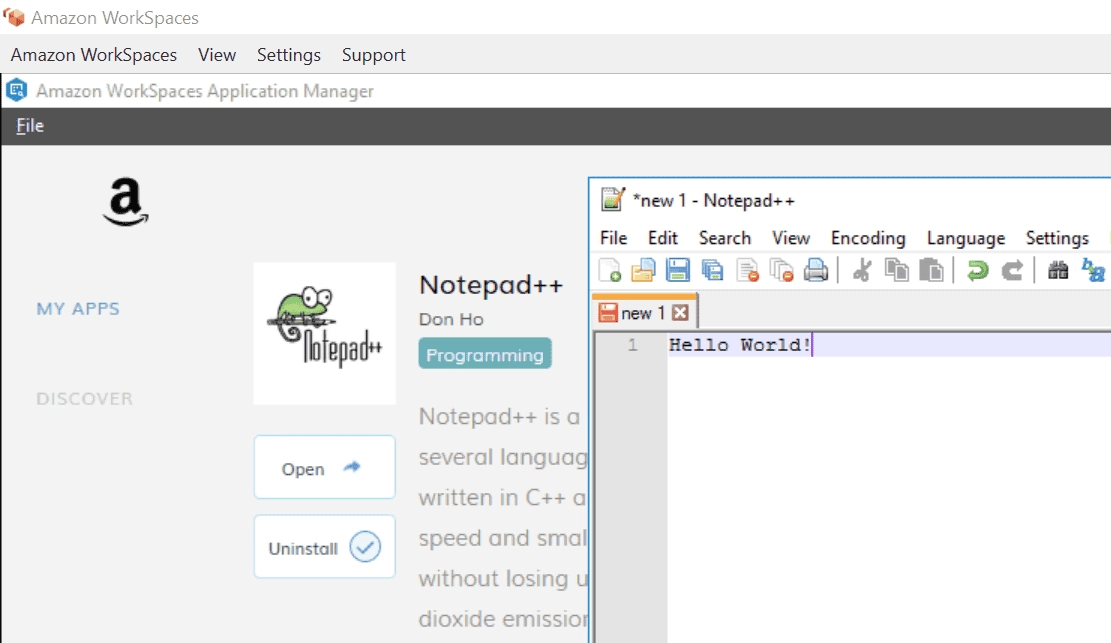
Once the application starts, select “Discover” and then “Install”. As soon as the installation finishes, the application will be ready to use.
The application will be installed and made available to the user.
Availability and Pricing
Regarding availability, as long as WorkSpaces is available in the desired region, it will be possible to use WAM. For more information about it, just go here. Pricing is tied to the WorkSpaces value, check here, along with the subscription to the Amazon WAM Standard plan, where, in the case of a subscription, a charge of USD 5 per user who uses it per month will apply.
Summary
In this article we saw how to select applications from the AWS Marketplace and assign them to the users and groups of our domain. However, this is just one of the ways to make them available. In this article we will make an application available to our users from outside the Marketplace.
