


What Is Kiro Web
A good part of the time your team spends on a small task isn’t writing the code: it’s opening the laptop, pulling the right branch, bringing up the local environment, remembering which variable is missing, and only then starting to solve the problem. On a change that spans two or three repositories, each of those steps repeats, and what should have been a 20-minute fix turns into an afternoon.
Kiro Web (app.kiro.dev) is Kiro’s development agent that runs
directly in the browser, with nothing to set up locally. You open a session, describe the task,
choose the GitHub or GitLab repositories it touches, and the agent works inside a cloud sandbox, not
on your machine. When the work is ready, it opens the pull request (or merge request, for GitLab
repositories) for you to review.
The difference from Kiro running in the IDE or the CLI isn’t the agent’s capability, it’s where the session lives. A task you started on your laptop, left half-done, and need to pick up later from a different computer, resumes right where it left off: the session lives in the cloud, not on a specific machine’s disk.
The 3 Working Modes
Kiro Web offers 3 ways to work, and the choice depends on how much control you want over each step:
- Default mode, collaborative: you discuss the approach with the agent, ask for adjustments, iterate together, like a pair-programming session, except the other side never gets tired.
- Spec mode: before any code is written, the agent structures the requirement, the technical design, and the implementation plan, for you to approve each part before the next.
- Autonomous mode: you describe the outcome you want, and the agent builds the plan and executes it from start to pull request, with specialized sub-agents at each step.
All 3 modes share the same rule: the change only reaches the repository’s default branch after your review. Kiro never merges on its own. The person who presses that button is always you.
From Request to Pull Request
The flow is the same across the 3 modes; what changes is how much you take part in each step along the way:
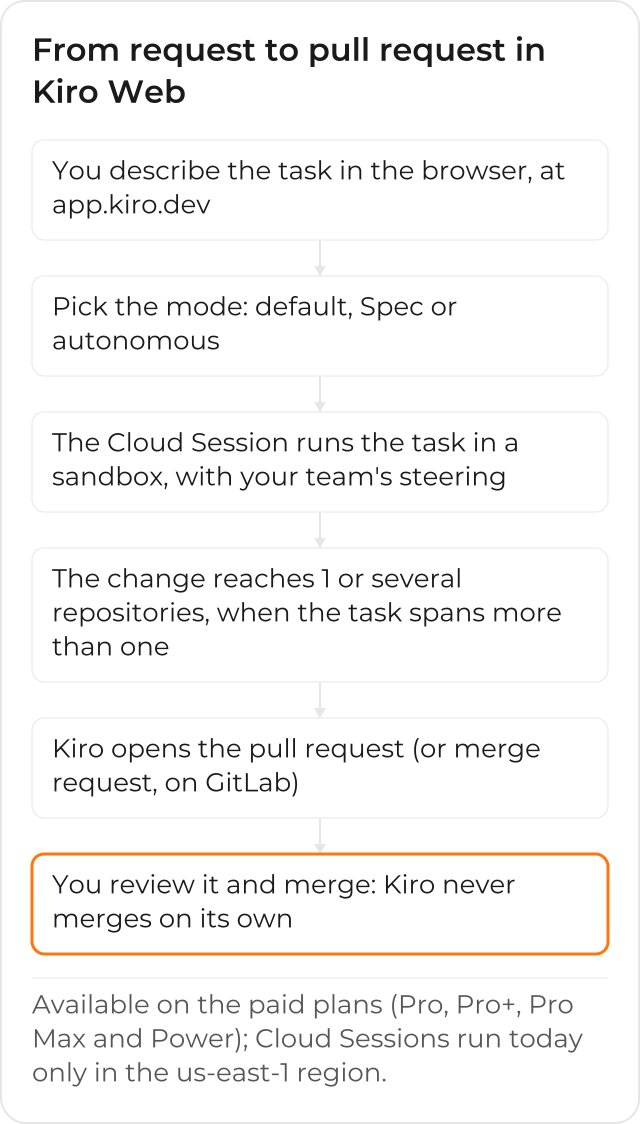
The step that usually surprises first-time users is the third one: the session runs in a Cloud Session, an isolated sandbox that already carries your team’s context, including the steering your team versions in the repository (and your own personal steering too, if you sync it; more on that in the “Steering” section below). It isn’t a generic copy of the agent chatting in a vacuum: it’s the same kind of context it would have running locally, just on a machine that isn’t yours.
Coordinating Changes Across Repositories
When a task calls for a change in a shared library and in the services or clients that depend on it, you select more than one repository in the same session, and Kiro Web clones all of them into the sandbox and coordinates the change across them. In practice, this avoids the back-and-forth of opening a separate session for each repository and hoping the two changes stay compatible.
Scheduled Tasks
Not every piece of work needs someone to open a session. The Schedule feature lets you describe the work once, choose the repositories, and set a cadence (hourly, daily, or by a custom cron expression), and Kiro then runs at that frequency, in autonomous mode, with no one needing to remember to ask. The documentation lists cases like generating a changelog, triaging a new issue, updating a dependency, and summarizing a merged pull request as the kind of recurring maintenance this feature is meant for.
Each scheduled run becomes a session like any other, visible in your session list, and the result arrives as a pull request, never as a direct commit to the default branch. If there’s nothing relevant to do in a given cycle, the right instruction in the prompt (the documentation itself recommends explicitly saying “if no pull requests were merged, do nothing”) avoids an empty pull request every day.
Steering: Your Team’s Conventions Built Into the Session
Your team’s steering, the kind already versioned under .kiro/steering/ in the repository, arrives
ready in every Cloud Session: the sandbox clones the repository, and the steering comes along, with
no extra step. What doesn’t travel on its own is your personal configuration, the one that lives in
~/.kiro on your machine (your own steering, custom agents, skills, hooks, Powers, and MCP
servers). That’s what Cloud configuration
(Configuration Sync) is for: you sync the supported folders from your local ~/.kiro to your
account, and they then apply to every cloud session, not just the one you just opened.
A steering file is just a Markdown file with front matter, in the format the steering documentation describes:
---
inclusion: fileMatch
fileMatchPattern: 'src/components/**/*.tsx'
---

# Component convention

- Every new component ships with tests in the same folder, suffixed `.test.tsx`.
- Props are typed in a `types.ts` file next to the component, never inline.
- No new component imports a CSS library directly: use the theme tokens instead.
The inclusion field decides when that file joins the conversation: always loads it every time,
fileMatch only when the file the agent is touching matches the declared pattern, manual only
when someone explicitly asks for it, and auto when the file’s description matches the person’s
request, the same mechanism this site itself uses in its own repository steering files. A cloud
session, the IDE, and the CLI all read the same .kiro/steering/: write the convention once, and it
applies in all 3 places.
Who Can Use It
Kiro Web is available on Kiro’s paid plans (Pro, Pro+, Pro Max, and Power) and isn’t part of the Free plan. Scheduled tasks follow the same plan rule.
How the Company Enables Kiro Web
In a company, no one turns on Kiro Web by themselves: whoever administers the AWS account where Kiro is configured must first enable Cloud Sessions, under Settings > Kiro Settings. If the company uses AWS IAM Identity Center, the step follows the documentation’s AWS Identity Center guide; organizations using Okta or Microsoft Entra ID can also use Kiro Web once an administrator enables Cloud Sessions and adds Kiro’s redirect address to the existing OIDC application. Today, Kiro Web is available only in the US East (N. Virginia, us-east-1) region: that’s where the Cloud Sessions infrastructure runs, not a choice your organization makes.
This is exactly the point (deciding who’s added to Identity Center, which AWS account hosts Kiro’s configuration, and how that fits into the rest of the company’s governance) where it helps to have someone who’s already been through it.
What the Team’s Flow Looks Like After Adopting Kiro Web
Adopting Kiro Web trades “opening the laptop for every small task” for describing the work and following the result: the session runs in the cloud, follows the team’s steering, and arrives as a pull request for review, from any machine, even a phone, if it’s just to comment on work in progress. Recurring tasks (changelog, issue triage, dependency updates) start running on their own, in the background, and the team only steps in to review and approve.
CloudDog, an AWS Advanced Partner, helps your team move from “someone tried it on a personal account” to a real, governed adoption: the right identity provider, Kiro’s profile in the right account, and Kiro Web, Workflows, and Kiro Crew working together in the team’s day-to-day, instead of every person discovering their own way to use the tool.
Check out CloudDog’s Amazon Kiro page, see Kiro Power to try it with AWS credit support, or the Amazon Kiro for Developers page if you’re the one writing the code and want to understand the day-to-day before asking your company to adopt it.
