
When a Task Is Too Big for 1 Session
Most of your team’s work fits in a single conversation: you ask, the agent answers, you adjust. But there are 2 situations where that stops being enough. The first is when the task is too big for 1 session alone: a feature that needs requirements, design, implementation, independent review and validation, for example. The second is when you would rather delegate the work instead of watching every step: an investigation that should finish while you move on to something else, not eat up your whole afternoon staring at the screen.
Kiro Workflows answer both situations with the same mechanism: a model defines which agents do the work and in what order, and Kiro runs that plan on its own, in the background, while you keep working in the main conversation.
What a Workflow Actually Is
Under the hood, a Workflow is a graph: agent steps, sequences, loops, and parallel branches, in a format both you and Kiro can read and write. The documentation sums up the structure in 5 ideas:
| Idea | What it means |
|---|---|
| Step | 1 agent runs in its own session, with focused context; it cannot read another step’s session |
| Handoff | A step’s captured output (or a declared artifact) passes evidence to a later step |
| Branch and join | Independent agents evaluate the same work, then a policy combines the outcomes |
| Loop | A group of steps repeats until the evidence matches a condition, or a safety cap is reached |
| Wait | The run watches an external system (a pull request, a script of yours) without spending model turns while nothing changes |
Each step runs in its own session, with focused context, and does not inherit the reasoning of whoever ran the previous step: a review step, for example, evaluates the result with its own eyes, not with the history of decisions made by whoever implemented it.
Who Decides What Each Step Can Do
A point that matters for whoever administers the company’s AWS account: according to the Workflows documentation, a step’s side effects (editing a file, running a command, opening a pull request) depend on both its prompt and the tools and permissions of its selected agent, which is why the recommendation is to review the recipe, and the agents it names, before running it.
Three Ways to Turn It On, Depending on the Client
Workflows are opt-in in every client (IDE, CLI or Web), and the control differs by client. In Kiro IDE, on top of the global switch that enables the feature, every top-level chat has its own control called “Use workflows,” with 3 options: Only when asked (starts a Workflow only when you explicitly request one; this is the initial default), Only for large tasks (Kiro decides on its own for multi-step work or work that needs more context), and As much as possible (tries to route most of the work, such as code reading, implementation, testing and review, through Workflows). None of the options allow anything the main session would not already allow; they only change how often Kiro proposes starting a Workflow on its own.
Not a Fixed Sequence
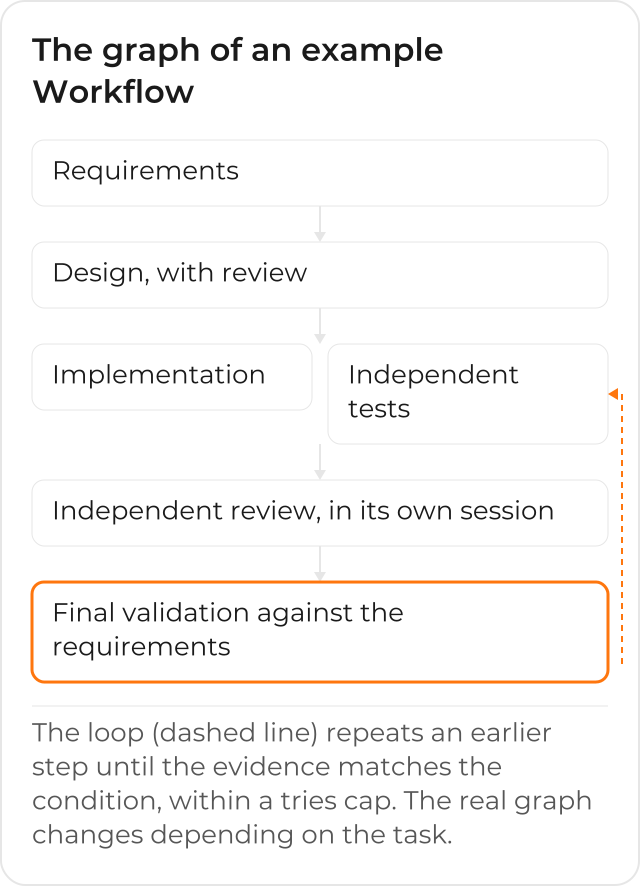
A common example of a Workflow is exactly the one that needs requirements, design, implementation, independent review and validation, but that sequence is just one example among several, not the required structure. The real graph can have parallel branches (2 approaches evaluated at the same time, for example) and a loop that goes back to an earlier step until validation passes, within a combined attempt cap.
3 Bundled Recipes, and How to Ask for One
You do not need to draw the graph by hand. You describe the outcome you want in the main
conversation, and Kiro proposes the plan of steps and agents, for you to approve before any step
runs; in Kiro CLI 2.33 or later, the approval shows a compact tree with each step, its agent, and
the model and effort where the plan sets them. According to the Workflows
documentation, Kiro ships 3 recipes that Kiro’s own team uses:
investigate (read-only investigation), feature-pipeline (staged feature delivery), and
publish-pr (opening a pull request and handling review feedback).
Every Step Stays Available to Talk To
While the Workflow runs, you stay in the main conversation, but each step keeps its own session available to pause, resume or steer during the run, and to revisit later with follow-up questions. Delegating even a small investigation already keeps its tool output and detailed reasoning out of the main conversation, which preserves your context for the work in front of you.
Turning It into a Reusable Recipe
When a Workflow works well for a kind of task your team repeats, it can be saved as a recipe: a
JSON or YAML file that declares the inputs and the step tree, with one of the suffixes
.workflow.json, .workflow.yaml or .workflow.yml, inside .kiro/workflows/. The Workflows
authoring documentation shows the example of a 2-step
recipe, plan-and-implement.workflow.json:
{
  "name": "plan-and-implement",
  "description": "Plan a change, then implement it",
  "inputs": {
    "task": "prompt"
  },
  "steps": [
    {
      "type": "step",
      "id": "plan",
      "agent": "wf-planner",
      "prompt": "Create an implementation plan for: {{task}}. Do not edit files."
    },
    {
      "type": "step",
      "id": "implement",
      "agent": "wf-coder",
      "prompt": "Implement this plan, then run relevant tests:\n\n{{previous.output}}"
    }
  ]
}
The {{previous.output}} in the 2nd step’s (implement) prompt is not free text: it is the
captured output of the earlier step (plan), which the Workflow passes forward as evidence,
without you having to copy and paste between sessions. A recipe saved in the repository’s
workspace applies to the whole team that opens that project, the same way
steering already works.
How the Team’s Flow Looks After Adopting Workflows
Teams that adopt Workflows trade “following every step of the task” for describing the outcome, approving the plan once, and coming back when Kiro has something to show or a question to ask. The investigation that would have eaten up the whole afternoon now runs while you move on to something else, and the kind of task that repeats (delivering a feature with independent review, for example) turns into a recipe anyone on the team can trigger, without rebuilding the process every time.
CloudDog, an AWS Advanced Partner, helps your team adopt Amazon Kiro with governance in the company’s AWS account, including the decision of which agents and tools each step of a Workflow can use, and use Kiro Web, Workflows and Kiro Crew day to day. Check out CloudDog’s Amazon Kiro page, see Kiro Power to try it with AWS credit support, or the Amazon Kiro for Developers page if you are the one writing the code.
